This is a report for Buyers.
This report provides the capability for Buyers to view both Invoices and Field Tickets for aging. It also lists all Debit Invoices that have not yet been Approved, Rejected or Paid.
- In the Reports module, click Document Aging.
The Document Aging report is displayed.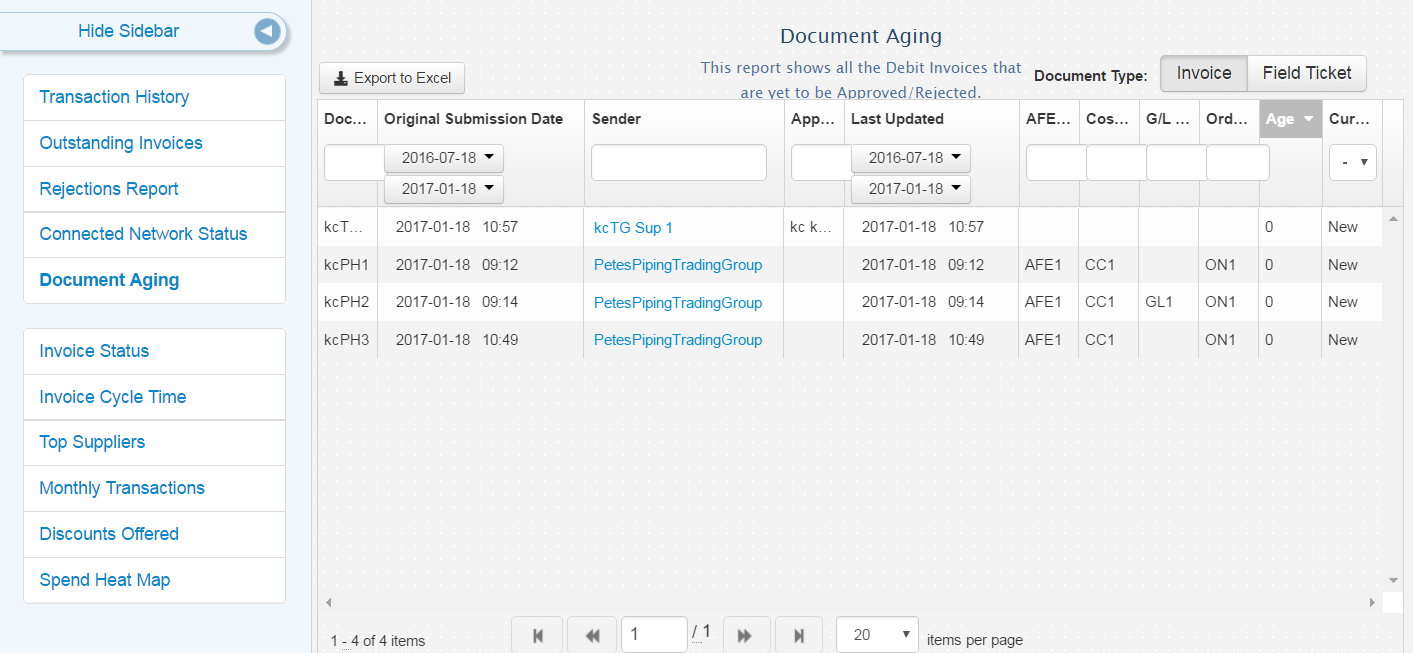
- Select the Document Type (Invoice or Field Ticket) at the top right of the report.

|
NOTE |
This report can be exported.
For information on exporting this report, refer to Exporting This Reports, page 1. |
 Invoice
- The Doc # field will display results.
If you are searching for aging for a specific document, you can filter the report by entering the document number in the search and filter field at the top of the column.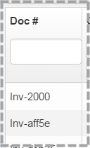
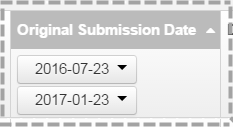
- In the Original Submission Date date range area, define the report period by selecting a Start Date and End Date.
- If you want to view the associated Trading Partner's Company Profile, click their name in the Sender column.
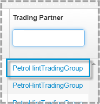
- The Approver field will display results.
If you are searching for aging for a specific approver, you can filter the report by entering their name in the search and filter field at the top of the column.
- In the Last Updated date range area, define the report period by selecting a Start Date and End Date.
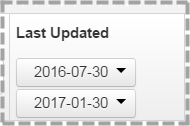
- The AFE # field will display results.
If you are searching for aging for a specific AFE #, you can filter the report by entering the AFE # in the search and filter field at the top of the column.
- The Cost Center field will display results.
If you are searching for aging for a specific Cost Center, you can filter the report by entering the Cost Center in the search and filter field at the top of the column.
- The G/L Account field will display results.
If you are searching for aging for a specific G/L Account, you can filter the report by entering the G/L Account in the search and filter field at the top of the column.
- The Order # field will display results.
If you are searching for aging for a specific Order #, you can filter the report by entering the Order # in the search and filter field at the top of the column.
- The Age field will display.
Clicking on the "Age" cell will change the order of the report from oldest to newest, and vice-versa.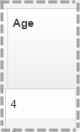
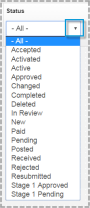
- Select the Current Status. You are unable to select more than one status of document.
The field defaults to "All".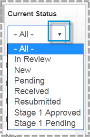
Field Ticket
- The Doc # field will display results.
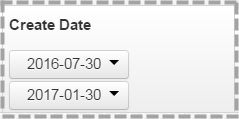
If you are searching for aging for a specific document, you can filter the report by entering the document number in the search and filter field at the top of the column. - In the Create Date date range area, define the report period by selecting a Start Date and End Date.
- If you want to view the associated Trading Partner's Company Profile, click their name in the Sender column.
- The Approver field will display results.
If you are searching for aging for a specific approver, you can filter the report by entering their name in the search and filter field at the top of the column. - The Business Unit field will display results.
If you are searching for aging for a specific Business Unit, you can filter the report by entering the Business Unit in the search and filter field at the top of the column.
- Select the Status. You are unable to select more than one status of document.
The field defaults to "All".